 Sightline
Overview
Sightline has an MCP server built in. Any AI agent that speaks the Model Context Protocol, such as Claude Code, Claude Desktop, Codex or Cursor, can use it to take screenshots, read text and codes on screen, mark up and style images, record and edit screencasts, find old captures and compare the screen with a design. The same 25 tools also run from the terminal, see Command line. The Mac App Store version lists 24, without capture_scrolling.
The server is sightline-cli mcp, a small program inside the app that speaks MCP over stdio. It hands every call to the running Sightline app over a local socket, and the app does the work with its own permissions. Nothing goes over the network.
Requirements
- Sightline from the Mac App Store on macOS 14 or later. Recording tools need macOS 15, a blur by subject,
remove_backgroundandsave_replayneed macOS 27. - Sightline Pro, or the free 7 day trial. Agent access is a Pro feature; without it every call returns
Sightline Pro is required for agent access. - Screen Recording permission for Sightline, in System Settings > Privacy & Security > Screen & System Audio Recording.
- Allow AI agents to use Sightline turned on in Sightline under Settings > AI Agents. It is off until you turn it on.
- Sightline running. When it isn't,
sightline-clistarts it in the background and waits up to 8 seconds for it.
Connect a client
The quickest way: open Sightline, go to Settings > AI Agents, turn on agent access and click Connect next to Claude Code, Claude Desktop or Codex CLI. Sightline offers three ways:
- Connect automatically adds Sightline's entry to the client's config file. Because the App Store version can only change files you give it, the first time it asks you to choose the folder that holds the config (Grant access and connect).
- Let your agent connect itself copies a short prompt. Paste it into a running agent session and the agent adds the entry.
- Copy config copies the entry so you can paste it into the file yourself.
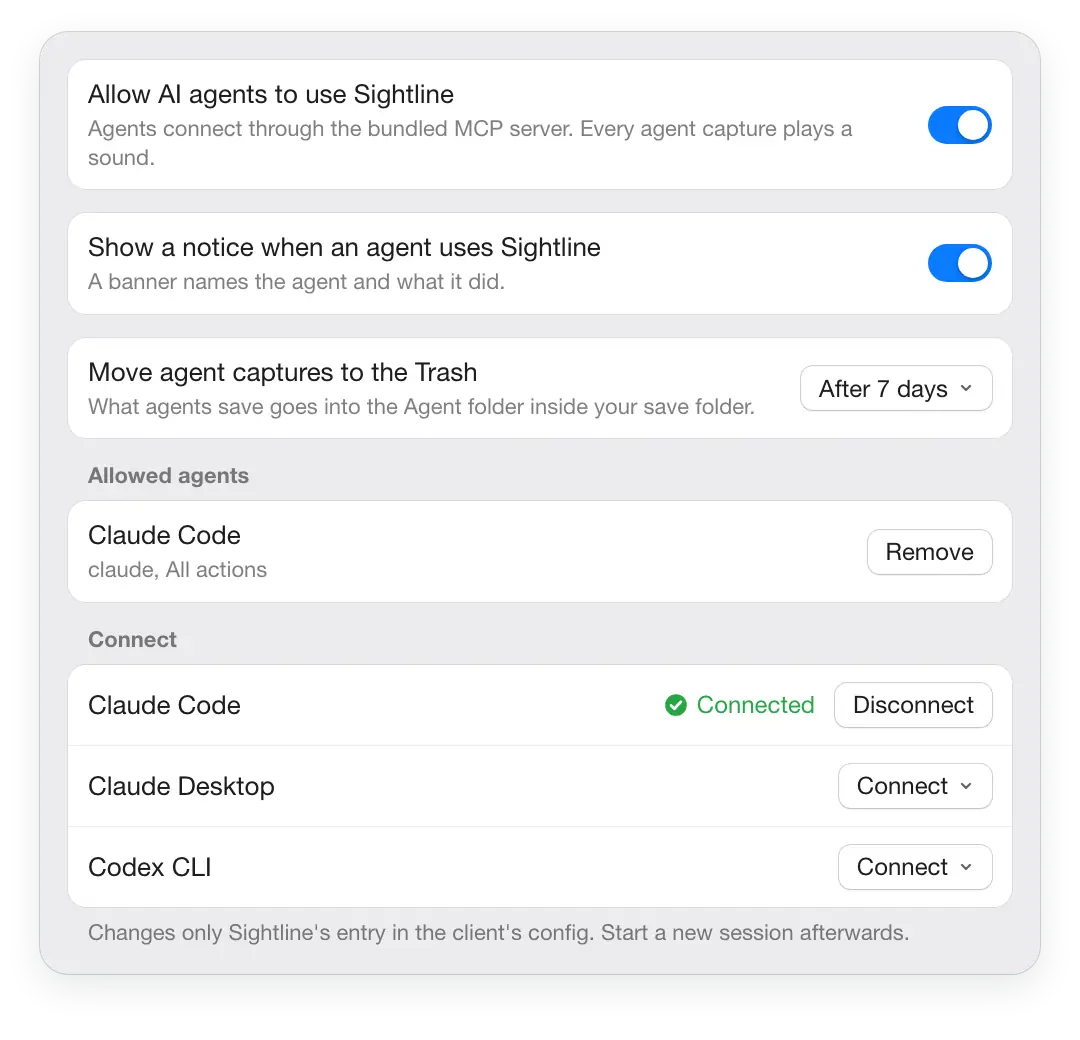
Then start a new session in the client, or quit and reopen Claude Desktop. Disconnect removes only Sightline's entry. When a config points to an older copy of Sightline, Settings shows Update.
To set it up by hand, point the client at sightline-cli mcp as a stdio server:
Claude Code
claude mcp add --scope user sightline -- \
"/Applications/Sightline.app/Contents/MacOS/sightline-cli" mcpThis is what Connect writes too: a sightline entry with type stdio under mcpServers in ~/.claude.json. Start a new session afterwards; claude mcp list shows sightline.
Claude Desktop
Add the sightline entry to mcpServers in ~/Library/Application Support/Claude/claude_desktop_config.json, keep the other servers, then quit and reopen Claude Desktop.
{
  "mcpServers": {
    "sightline": {
      "command": "/Applications/Sightline.app/Contents/MacOS/sightline-cli",
      "args": ["mcp"]
    }
  }
}Codex CLI
Add this block to ~/.codex/config.toml, replacing an older [mcp_servers.sightline] block, and start a new Codex session.
[mcp_servers.sightline]
command = "/Applications/Sightline.app/Contents/MacOS/sightline-cli"
args = ["mcp"]Cursor and other clients
Any MCP client that can start a stdio server works. Cursor reads the same mcpServers entry as Claude Desktop from ~/.cursor/mcp.json. Elsewhere, use this command with the single argument mcp:
"/Applications/Sightline.app/Contents/MacOS/sightline-cli" mcpThe server announces itself as sightline with Sightline's version and protocol version 2025-06-18. It also sends one instruction to the agent: when the user talks about one of their own screenshots or recordings, call list_editors first and pass editor instead of copying files.
Approval and safety
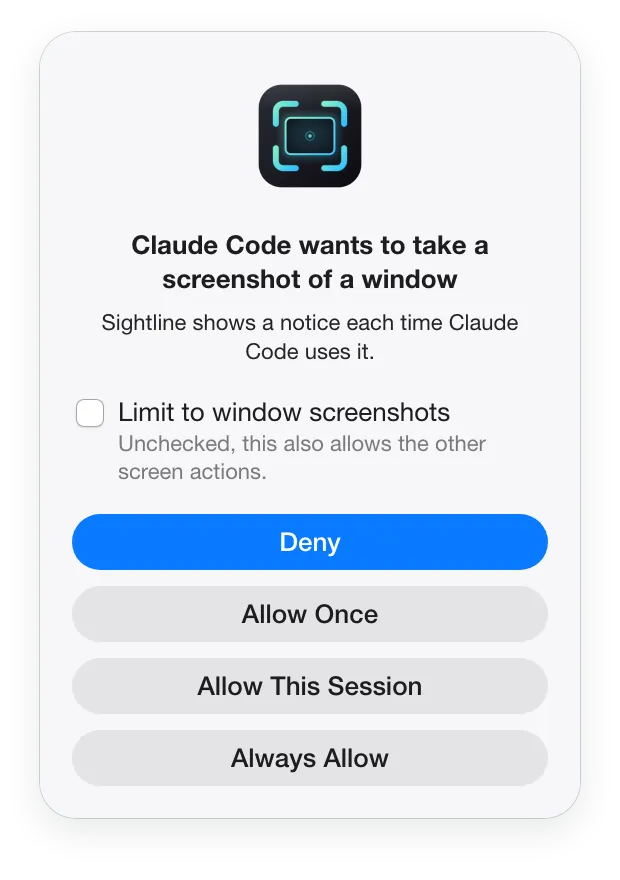
- Off by default. Agents can't use Sightline until you turn on Allow AI agents to use Sightline.
- Each agent asks first. Sightline identifies the program that started
sightline-cli, such as Claude Code, Codex or Cursor, not the name a client reports. Its first request opens a dialog: Deny, Allow Once, Allow This Session or Always Allow. Tick Limit to ... to allow only that kind of action, such as window screenshots; unticked, the grant also covers the other screen actions. - Commands from a terminal are shown as coming from your Terminal, such as
zsh. Allowing them for the session or always also allows anything else you run in that shell. - Manage grants in Settings > AI Agents: remove an allowed agent, End session grants, or Clear denied. Several denials in a short time stop new dialogs for a while (
too many approval requests, try again later). - You notice every capture. Captures play the capture sound. With Show a notice when an agent uses Sightline on, the default, a banner names the agent and what it did. Recordings show a recording notice the whole time.
- One folder. What agents save goes into the Agent folder inside your save folder, by default
~/Pictures/Screenshots/Agent. Tools only read files from there, plus the user recordingslast_recordingreturns and pictures open in an editor. Agents can't change settings or delete presets. - Clean-up. Move agent captures to the Trash is After 7 days by default; you can choose Never, After 1 day or After 30 days.
- Credentials. On Macs with Apple Intelligence, with Check captures for sensitive content and Hide flagged credentials from agents on, text that looks like a password, key or token is blurred in images an agent gets and left out of text results and search.
- Your files stay yours. A recording you made is never overwritten; edits go to a new file. Agent recordings never include the microphone, the camera or the keys you pressed.
Coordinates, files and seconds
Points and pixels
Screen positions, such as area, pick_color and the frames from list_windows and list_displays, are points with the origin at the top left of the main display. Everything inside an image, such as annotation coordinates, crop, region and the boxes find_text returns, is pixels of that image with the origin at its top left. A capture's scale says how many pixels one point has, usually 2 on a Retina display.
Tools that take area, window or display accept only one of them. Leave all out to use the display under the pointer.
Which files a tool takes
- Every capture tool returns a
pathin the Agent folder. Pass it on toannotate,beautify,capture_text,copy_to_clipboard,remove_backgroundoropen_in_editor. - Leave
pathout and those tools use this agent's last screenshot. last_recordingcan return a recording the user made. That path works withinspect_recording,annotate,copy_to_clipboardandopen_in_editor; results go to a new file.search_capturesreturns the user's own files. Read them directly, or copy a screenshot into the Agent folder before annotating it. If it is open in an editor, passeditorinstead.- Pass
editor(fromlist_editors, orfront) to work on what the user has open, without any file. See Working in the open editor.
Seconds in recordings
All seconds you pass for a recording, for marks, pieces, trim, sound, zooms, keys and camera parts, count in the original recording, before any cut or speed change. A mark at 12 s stays on what was at 12 s wherever its piece ends up, and disappears with a piece that is cut.
Captures saved with their edit
With Keep saved captures editable on (the default), Sightline keeps the original of every capture the user edits. Tools then work on that original: open_in_editor and annotate restore the user's marks, crop, Style look, cuts, volumes, zooms, pointer, keys and camera, and the result says restored_edit: true. Pixels and seconds then count in the original, turned the way the edit turned it.
Tool reference
Every tool returns MCP content: a JSON text, and for most image tools an inline image unless include_image is false. Errors come back as a text with isError set. The examples show the tool name and the arguments object a client sends; with the CLI, pass that object to --json. Paths like /Users/you/... stand for real paths a tool returned.
Capture
Captures are saved into the Agent folder in the format you pick and come back with path, width and height in pixels, scale, and an inline preview (with preview_width and preview_height) unless include_image is false. Whether Sightline's own windows, such as pins, appear in screen and area captures follows the Hide Sightline in captures and recordings setting.
capture_screen
Takes a screenshot of a whole display, optionally with marks drawn on it.
| Parameter | Type | Default | What it does |
|---|---|---|---|
display | integer | display under the pointer | Index from list_displays; 0 is the main display. |
annotations | array | Marks to draw before saving, in pixels of the capture. See annotation object. A blur by subject only works in annotate and open_in_editor. | |
format | png jpeg webp | png | File type. JPEG and lossy WebP use the quality from Sightline's settings. Transparent images stay PNG, and images over 16383 pixels are PNG instead of WebP. |
name | string | timestamp | File name without extension, such as login-error. A number is added when the name is taken. |
include_image | boolean | true | Attach a downscaled inline preview. Set false to save tokens when only the path is needed. |
The second display as a lossy WebP, without a preview, to keep the agent's context small:
{
  "tool": "capture_screen",
  "arguments": {
    "display": 1, "format": "webp", "name": "second-display",
    "include_image": false
  }
}Returns path, width, height, scale and a preview.
capture_area
Takes a screenshot of a rectangle given in points.
| Parameter | Type | Default | What it does |
|---|---|---|---|
x, y, width, height | number | required | The area in points. |
annotations | array | Marks to draw before saving, in pixels of the capture. See annotation object. A blur by subject only works in annotate and open_in_editor. | |
format | png jpeg webp | png | File type. JPEG and lossy WebP use the quality from Sightline's settings. Transparent images stay PNG, and images over 16383 pixels are PNG instead of WebP. |
name | string | timestamp | File name without extension, such as login-error. A number is added when the name is taken. |
include_image | boolean | true | Attach a downscaled inline preview. Set false to save tokens when only the path is needed. |
The top left 1280 by 800 points, with a numbered callout drawn in at once. Annotation positions are pixels, so on a Retina display x 400 is 200 points in:
{
  "tool": "capture_area",
  "arguments": {
    "x": 0,
    "y": 25,
    "width": 1280,
    "height": 800,
    "name": "menu-bar-area",
    "annotations": [
      {
        "type": "number", "x": 400, "y": 120, "label": "Click here first",
        "number_size": "large"
      }
    ]
  }
}Returns path, width, height, scale and a preview.
capture_window
Takes a screenshot of one window, picked by app name, title or id, without its shadow.
| Parameter | Type | Default | What it does |
|---|---|---|---|
app | string | Case insensitive substring of the app name; the frontmost match wins. | |
title | string | Substring of the window title. | |
id | integer | Window id from list_windows; wins over app and title. | |
annotations | array | Marks to draw before saving, in pixels of the capture. See annotation object. A blur by subject only works in annotate and open_in_editor. | |
format | png jpeg webp | png | File type. JPEG and lossy WebP use the quality from Sightline's settings. Transparent images stay PNG, and images over 16383 pixels are PNG instead of WebP. |
name | string | timestamp | File name without extension, such as login-error. A number is added when the name is taken. |
include_image | boolean | true | Attach a downscaled inline preview. Set false to save tokens when only the path is needed. |
The Safari window whose title contains Checkout, with the failing field boxed and a note:
{
  "tool": "capture_window",
  "arguments": {
    "app": "Safari",
    "title": "Checkout",
    "name": "checkout-error",
    "annotations": [
      {
        "type": "rectangle", "x": 312, "y": 540, "width": 620,
        "height": 88, "color": "#FF453A", "stroke_width": 6
      },
      {
        "type": "text", "x": 960, "y": 560,
        "text": "Card number rejected\nbut format is valid", "size": 30,
        "text_background": "solid"
      }
    ]
  }
}A window by id, as list_windows returned it:
{"tool": "capture_window", "arguments": {"id": 4211, "format": "jpeg"}}Returns path, width, height, scale and a preview.
capture_scrolling
Scrolls a window, an area or a region inside a window and stitches the frames into one tall screenshot.
The Mac App Store version doesn't list this tool, because the sandbox doesn't let Sightline scroll other apps; called by name from the CLI it returns the App Store build cannot scroll windows for you; .... Capture the visible part with capture_window, or ask the user to take a scrolling capture with ⇧⌘6 and find it with search_captures. Builds outside the store also need Accessibility permission.
| Parameter | Type | Default | What it does |
|---|---|---|---|
window | object | {app, title, id}: a case insensitive substring of the app name or window title, or a window id from list_windows. The frontmost match wins. | |
area | object | {x, y, width, height} in points. | |
region | object | {x, y, width, height} in pixels of a capture_window image of the same window, to scroll one part such as a list column. | |
annotations | array | Marks to draw before saving, in pixels of the capture. See annotation object. A blur by subject only works in annotate and open_in_editor. | |
format | png jpeg webp | png | File type. JPEG and lossy WebP use the quality from Sightline's settings. Transparent images stay PNG, and images over 16383 pixels are PNG instead of WebP. |
name | string | timestamp | File name without extension, such as login-error. A number is added when the name is taken. |
include_image | boolean | true | Attach a downscaled inline preview. Set false to save tokens when only the path is needed. |
Scroll only the message list of Mail, found in a capture_window image first:
{
  "tool": "capture_scrolling",
  "arguments": {
    "window": {"app": "Mail"},
    "region": {"x": 0, "y": 104, "width": 760, "height": 1300},
    "name": "inbox-full"
  }
}Returns path, width, height, scale and a preview.
list_windows
Lists the windows on screen, front to back.
No parameters.
{"tool": "list_windows", "arguments": {}}Returns An array of windows, each with id, app, title and the frame x, y, width, height in points.
list_displays
Lists the connected displays.
No parameters.
{"tool": "list_displays", "arguments": {}}Returns An array of displays, each with index (what display takes), name, the frame x, y, width, height in points, scale and is_main.
Read the screen
capture_text
Reads the text in an area, a window, a display or a saved image with on-device text recognition, and decodes QR codes and barcodes.
| Parameter | Type | Default | What it does |
|---|---|---|---|
area | object | {x, y, width, height} in points. | |
window | object | {app, title, id}: a case insensitive substring of the app name or window title, or a window id from list_windows. The frontmost match wins. | |
display | integer | display under the pointer | Index from list_displays; 0 is the main display. |
path | string | An image in the Agent folder to read instead of the screen. Boxes are then in its pixels. |
Read a terminal window:
{"tool": "capture_text", "arguments": {"window": {"app": "Terminal"}}}Read an image the agent captured earlier, for example to quote an error message exactly:
{
  "tool": "capture_text",
  "arguments": {"path": "/Users/you/Pictures/Screenshots/Agent/checkout-error.png"}
}Returns text, codes (each with payload, symbology and a pixel box), the image width and height, and scale for a capture. hidden_lines counts lines left out as credentials.
find_text
Finds where a piece of text is and returns its pixel boxes, ready for a mark, a blur or a scrolling region.
| Parameter | Type | Default | What it does |
|---|---|---|---|
text | string | required | Text to look for, case insensitive, as part of a recognized line. |
window | object | {app, title, id}: a case insensitive substring of the app name or window title, or a window id from list_windows. The frontmost match wins. | |
area | object | {x, y, width, height} in points. | |
display | integer | display under the pointer | Index from list_displays; 0 is the main display. |
path | string | An image in the Agent folder to read instead of the screen. Boxes are then in its pixels. | |
editor | string | An id from list_editors or front: search the screenshot open in that editor, marks included, in the pixels annotate with editor uses. |
Where does Total appear in the open invoice screenshot:
{"tool": "find_text", "arguments": {"text": "Total", "editor": "front"}}Find a token in a saved capture before blurring it:
{
  "tool": "find_text",
  "arguments": {
    "text": "sk_live",
    "path": "/Users/you/Pictures/Screenshots/Agent/env-vars.png"
  }
}Returns matches, each with text (the whole line) and x, y, width, height; codes whose payload contains the text; the image width and height.
pick_color
Reads the color of one point on screen.
| Parameter | Type | Default | What it does |
|---|---|---|---|
x, y | number | required | Position in points from the top left of the main display, or of display. |
display | integer | Count x and y from this display's top left. |
The color at 612, 344 points on the second display:
{"tool": "pick_color", "arguments": {"x": 612, "y": 344, "display": 1}}Returns hex (#RRGGBB in sRGB), red, green, blue from 0 to 255, and the x and y read, rounded down to whole points.
compare_with_design
Compares a design image with a window, an area or a display, the same check as Show Differences on a pin.
| Parameter | Type | Default | What it does |
|---|---|---|---|
design | string | required | A PNG, JPEG or WebP inside the Agent folder. Copy a design from elsewhere there first. |
window | object | {app, title, id}: a case insensitive substring of the app name or window title, or a window id from list_windows. The frontmost match wins. | |
area | object | {x, y, width, height} in points. | |
display | integer | display under the pointer | Index from list_displays; 0 is the main display. |
align | boolean | true | Line the design up by up to 8 pixels first, so a small offset of the whole image doesn't count. |
include_image | boolean | true | Attach a downscaled inline preview. Set false to save tokens when only the path is needed. |
The running iOS Simulator against the exported design:
{
  "tool": "compare_with_design",
  "arguments": {
    "design": "/Users/you/Pictures/Screenshots/Agent/signup-design.png",
    "window": {"app": "Simulator"}
  }
}Strict, without lining up, for a pixel exact check:
{
  "tool": "compare_with_design",
  "arguments": {
    "design": "/Users/you/Pictures/Screenshots/Agent/signup-design.png",
    "window": {"app": "Simulator"},
    "align": false,
    "include_image": false
  }
}Returns A marked capture with path, width, height and scale; shift with dx and dy; and up to 20 differences, each with number, a pixel box and hint: shifted (with dx, dy), only_in_design, only_on_screen or looks_different.
Edit and annotate
annotate changes a file and returns it. open_in_editor puts the same changes into the Sightline editor, where the user can adjust them before saving. Both, and beautify, take editor instead of a path to change a window the user already has open. remove_background writes a cutout of a screenshot to a new file.
annotate
Draws marks onto a screenshot or recording, and crops, rotates, flips, resizes, styles or exports it. Recording options are under Editing a recording.
If the file is open in a Sightline editor, also one the user opened, the change lands there live as one undo step. A capture the user saved with its edit is changed on its unedited original, with the user's marks kept.
| Parameter | Type | Default | What it does |
|---|---|---|---|
path | string | this agent's last screenshot | An image or recording in the Agent folder, or a recording last_recording returned. |
editor | string | An id from list_editors, or front. The change appears live in that window as one undo step and no file is written. Leave out path, output, name and export. | |
annotations | array | required | Marks to draw, in order. Pass [] to only crop, style, resize or export. See annotation object. |
crop | object or false | Screenshot: {x, y, width, height} in pixels of the uncropped image. Marks are drawn first, then the image is cropped. Recording: see Editing a recording. | |
rotate | 90 180 270 | Turn a screenshot clockwise. Marks and crop are given before the turn and move with it; text stays upright. | |
flip | horizontal vertical | Mirror a screenshot, after rotate. Text stays readable. | |
resize | object | {scale} from 0.05 to 1, {width} or {height} (the other side follows), or both (may stretch). Only shrinks, each side at least 16 pixels. Coordinates stay in the full size. | |
beautify | object | A Style look: the fields of beautify except paths and output. | |
export | object | A one-off copy, never over the source. Screenshot: {format: png | jpeg | webp, quality: high | medium | small}. Recording: see below. | |
format | png jpeg webp | source format | Write the result to a new file in this format. |
name | string | Write the result to a new file with this name. | |
output | string | Full path for the result inside the Agent folder; it must not exist yet. | |
include_image | boolean | true | Attach a downscaled inline preview. Set false to save tokens when only the path is needed. |
Explain a bug on a capture: an arrow, a boxed note in the handwriting font, a pixelated email address, and a crop to the interesting part, written to a new file:
{
  "tool": "annotate",
  "arguments": {
    "path": "/Users/you/Pictures/Screenshots/Agent/checkout-error.png",
    "name": "checkout-error-marked",
    "annotations": [
      {
        "type": "arrow", "from": [1180, 300], "to": [940, 560],
        "stroke_width": 6, "shadow": true
      },
      {
        "type": "rectangle", "x": 1190, "y": 180, "width": 520,
        "height": 130, "fill": true, "color": "#FFD60A",
        "text": "Rejects valid Visa numbers", "font": "handwriting",
        "size": 34
      },
      {
        "type": "blur", "x": 120, "y": 96, "width": 380, "height": 44,
        "blur_style": "pixelate"
      }
    ],
    "crop": {"x": 80, "y": 60, "width": 1700, "height": 760}
  }
}A step by step guide: three numbered badges with labels and a spotlight on the first step, then a small JPEG for a chat:
{
  "tool": "annotate",
  "arguments": {
    "path": "/Users/you/Pictures/Screenshots/Agent/settings-window.png",
    "annotations": [
      {
        "type": "spotlight", "x": 40, "y": 220, "width": 560,
        "height": 120, "dim": 0.6
      },
      {"type": "number", "x": 70, "y": 280, "label": "Open General"},
      {"type": "number", "x": 70, "y": 520, "label": "Turn on Sync"},
      {"type": "number", "x": 70, "y": 760, "label": "Click Done"}
    ],
    "resize": {"width": 1200},
    "export": {"format": "jpeg", "quality": "medium"}
  }
}Circle something loosely and magnify a tiny label:
{
  "tool": "annotate",
  "arguments": {
    "path": "/Users/you/Pictures/Screenshots/Agent/toolbar.png",
    "annotations": [
      {
        "type": "freehand",
        "points": [
          [400, 92],
          [470, 70],
          [560, 78],
          [600, 110],
          [560, 142],
          [460, 146],
          [404, 120],
          [410, 96]
        ],
        "color": "#30D158",
        "stroke_width": 5
      },
      {
        "type": "magnify", "x": 760, "y": 40, "width": 220, "height": 220,
        "zoom": 3
      }
    ]
  }
}Returns path, width and height of the result and a preview. By default a screenshot is updated in place and the same path comes back.
Annotation object
Each entry of annotations is one mark. Every field except type is optional.
| Field | Type | Default | What it does |
|---|---|---|---|
type | string | required | arrow line freehand rectangle ellipse highlight blur spotlight magnify text number |
from, to | [x, y] | Start and end of an arrow or line. | |
points | [[x, y], ...] | For freehand: at least 2 points in drawing order. Sightline smooths the line, so a point every 5 to 20 pixels is enough. | |
x, y, width, height | number | The box of a rectangle, ellipse, highlight, blur, spotlight or magnify. For text the top left, for number the badge center. | |
text | string | The text of a text mark, or text centered and wrapped inside a rectangle or ellipse. \n breaks a line. | |
size | number | 24 | Font size in pixels. |
font | system rounded serif monospaced handwriting | system | Typeface, the same choices as the editor. |
bold | boolean | true | Bold letters. |
text_background | none solid translucent | none | A rounded box behind the text. |
text_background_color | hex | white or black | Color of that box. On its own it draws a solid box. |
color | hex | #FF453A | Color of every mark except blur, spotlight and magnify. |
stroke_width | number | 4 | Line thickness of arrow, line, freehand, rectangle and ellipse. |
fill | boolean | false | Fill a rectangle or ellipse. |
arrow_head | filled open both | filled | Arrow head style. |
shadow | boolean | false | Drop shadow under the mark. |
number | integer | next number | The badge number, counting from 1 in each call. |
label | string | A label to the right of a number badge. | |
number_size | small medium large extra_large | medium | Badge size. |
blur_style | blur pixelate | blur | Blur, or even blocks about a twelfth of the shorter side. |
edge | sharp soft | sharp | Edge of a blur. |
subject | [x, y] | Blur the whole thing at this point, found with on-device Vision, instead of a box. macOS 27, annotate and open_in_editor only. | |
dim | number 0 to 1 | 0.55 | How dark the area outside a spotlight gets. Several spotlights share one dim layer. |
zoom | 1.5 2 3 4 | 2 | How much a magnify loupe enlarges. |
shape | round rectangle | round | Outline of a magnify loupe. |
start_second, end_second | number | whole recording | Recordings: when the mark shows, in seconds of the original. |
follow | boolean | true for blurs | Recordings: a blur moves with what it covers, forward and backward from second, and pauses while that is off screen. |
second | number | start_second or 0 | Recordings: the frame a blur's box or subject refers to. |
open_in_editor
Opens a screenshot or recording in the Sightline editor, brings Sightline to the front and adds marks, a look, cuts or zooms the user can still change.
If the file is already open, no second window opens: the open window comes to the front and the change lands there as one undo step. With paths, several screenshots open together in one window, or with editor are added to that window. To save every picture of a window as files, use export_pictures.
| Parameter | Type | Default | What it does |
|---|---|---|---|
path | string | this agent's last screenshot | An image or recording in the Agent folder, or a recording last_recording returned. |
paths | array | Two or more screenshots to open together in one editor window, where the user switches between them. They open without changes, so leave out every other argument except mode. Files already open stay where they are. With editor, one or more screenshots to add to the end of that window, like dropping them on its column; one open in another window is listed under skipped. | |
editor | string | An id from list_editors, or front. The change appears live in that window as one undo step and no file is written. Leave out path, output, name and export. | |
all_pictures | boolean | false | With editor and resize: make every picture of the window smaller, like Adjust Size of All Pictures, each as its own undo step. resize then takes scale, a share of the size each picture is saved at, or width, which narrows only wider pictures; pass nothing else. |
from_clipboard | boolean | Open the picture on the user's clipboard instead of a file; leave out path. The picture is not returned to the agent. | |
mode | edit view | edit | view shows only the picture or video, with Share, Copy and Edit; the user switches with ⌘E. On a window that is already open it switches that window. Marks still land in view mode. |
annotations | array | Editable marks to add. | |
beautify | object | A Style look the user can change in the Style panel. | |
rotate, flip, resize | As in annotate. | ||
pieces, sound, zooms, zoom_on_clicks, crop, pointer, keys, camera | Recordings, as in Editing a recording. trim and export are annotate only. | ||
include_image | boolean | true | With editor and a screenshot: an image of the picture after the change. |
Hand a capture to the user with suggestions they can move or delete:
{
  "tool": "open_in_editor",
  "arguments": {
    "path": "/Users/you/Pictures/Screenshots/Agent/onboarding.png",
    "annotations": [
      {
        "type": "highlight", "x": 210, "y": 404, "width": 520,
        "height": 48
      },
      {
        "type": "text", "x": 760, "y": 410, "text": "Shorter title?",
        "color": "#0A84FF", "size": 28
      }
    ],
    "beautify": {"look": "soft", "padding": 48}
  }
}Open what the user just copied:
{"tool": "open_in_editor", "arguments": {"from_clipboard": true}}Returns The path that was opened, or from_clipboard, width and height. For a capture saved with its edit, restored_edit: true plus the restored crop size, resize, and for a recording its duration, pieces, sound, zooms, crop, pointer, keys and camera in the same form as the arguments. With paths: paths and editors, one editor id per picture in the same order. With all_pictures: editors in column order and resized, those that changed.
Add two screenshots to the window the user has open, then halve every picture in it:
{
  "tool": "open_in_editor",
  "arguments": {
    "editor": "front",
    "paths": [
      "/Users/you/Pictures/Screenshots/Agent/step-2.png",
      "/Users/you/Pictures/Screenshots/Agent/step-3.png"
    ]
  }
}{
"tool": "open_in_editor",
"arguments": {"editor": "front", "all_pictures": true, "resize": {"scale": 0.5}}
}remove_background
Lifts the main subject of a screenshot off its background with on-device Vision, like Remove Background on a thumbnail, a pin or in History, and saves it as a new PNG with a transparent background. Needs macOS 27.
The source stays as it is, and the cutout becomes this agent's last screenshot, so the next tool can leave out path. It works best on a picture with a clear subject, such as a person, an object, an icon or a window on a desktop; without one it returns no subject found to lift off the background. To show the result to the user, pass it to open_in_editor.
| Parameter | Type | Default | What it does |
|---|---|---|---|
path | string | this agent's last screenshot | A screenshot in the Agent folder. |
name | string | source name with cutout added | File name without extension. A number is added when the name is taken. |
include_image | boolean | true | Attach a downscaled inline preview. Set false to save tokens when only the path is needed. |
Cut the app icon out of a capture and put it on a soft background:
{
  "tool": "remove_background",
  "arguments": {
    "path": "/Users/you/Pictures/Screenshots/Agent/app-icon.png",
    "name": "app-icon-cutout"
  }
}{"tool": "beautify", "arguments": {"look": "soft", "name": "app-icon-card"}}Returns path, width, height, scale and a preview, like a capture.
Recordings
Recording tools need macOS 15. Recordings are MP4 in the codec of Sightline's Recording settings. A recording you made is never overwritten; annotate writes its result to a new file in the Agent folder.
record_screen
Records a window, an area or a display for up to 60 seconds and notes where the pointer moves and clicks. Recording starts right away, so ask the user to get ready first.
A drawn pointer is not in the file itself, so pass the result through annotate before handing the file on. The microphone and the camera are never recorded, whatever the user's settings, so an agent never captures anyone's voice or face, and keys are never noted for agent recordings. The agent recording's pointer track goes with the Agent folder clean-up.
| Parameter | Type | Default | What it does |
|---|---|---|---|
seconds | number 1 to 60 | 10 | How long to record. |
window | object | {app, title, id}: a case insensitive substring of the app name or window title, or a window id from list_windows. The frontmost match wins. | |
area | object | {x, y, width, height} in points. | |
display | integer | display under the pointer | Index from list_displays; 0 is the main display. |
include_audio | boolean | false | Record system audio. The microphone is never recorded. |
include_menu_bar | boolean | the user's setting | For a display: false leaves the menu bar at the top out of the recording. |
pointer | off video drawn | video | drawn leaves the pointer out of the file so Sightline can draw it later at any size, hidden while it rests. The default is off when the user's Pointer setting is off. |
size | original 1080p 720p | original | Scale the shorter side of a larger video down. |
quality | high medium small | high | Bit rate. Anything but the defaults encodes once more and keeps only the smaller file, with the pointer track scaled to fit. |
Record the Simulator for 20 seconds with its sound, the pointer left out for later, at 1080p:
{
  "tool": "record_screen",
  "arguments": {
    "window": {"app": "Simulator"},
    "seconds": 20,
    "include_audio": true,
    "pointer": "drawn",
    "size": "1080p"
  }
}A small 720p clip of one screen area for a quick bug report:
{
  "tool": "record_screen",
  "arguments": {
    "area": {"x": 200, "y": 120, "width": 1280, "height": 800},
    "seconds": 8,
    "size": "720p",
    "quality": "small"
  }
}Returns path, duration, width and height of the file, scale, and the pointer used (drawn falls back to video when the track can't be noted); pointer_note when the track couldn't be saved.
last_recording
Returns the newest recording, for requests like "I just recorded this, cut the start".
| Parameter | Type | Default | What it does |
|---|---|---|---|
source | newest mine | newest | newest looks at the whole screenshots folder, mine only at recordings this agent made. |
{"tool": "last_recording", "arguments": {}}Only what this agent recorded:
{"tool": "last_recording", "arguments": {"source": "mine"}}Returns path, made_by (user or agent), duration, width, height and modified (ISO 8601).
inspect_recording
Looks at a recording without changing it: when it is still or moving, what text frames show, where the user clicked, which keys they pressed and how their camera shows.
| Parameter | Type | Default | What it does |
|---|---|---|---|
path | string | required | A recording in the Agent folder or from last_recording. |
region | object | {x, y, width, height} in video pixels: watch only this area for motion. | |
text_at_seconds | array of numbers | Up to 10 seconds whose frames are read for text. | |
frame_at_second | number | One frame comes back as an image. |
Find the loading stretch in the content area, read the text at three moments and look at one frame:
{
  "tool": "inspect_recording",
  "arguments": {
    "path": "/Users/you/Pictures/Screenshots/Agent/signup-flow.mp4",
    "region": {"x": 0, "y": 120, "width": 1920, "height": 900},
    "text_at_seconds": [1.5, 6, 11],
    "frame_at_second": 6
  }
}Returns duration, width and height (after the crop), source_width and source_height (the uncropped video), crop (x, y, width, height of the crop in the user's saved edit, or null), frame_rate and segments (each start, end, moving); text with the lines and pixel boxes per second; has_pointer_track and up to 200 clicks (second, x, y, button, count, released_second, plus released_x, released_y for a drag); has_key_track and up to 200 keys (shortcuts such as ⇧⌘5 and typed words, each with second); clicks_left_out and keys_left_out count the rest; has_camera, true only for a recording the user made with the camera, and then camera with parts (in the form the camera argument takes), shadow and hidden_while_recording, the stretches the user hid the camera while recording, which have no picture; frame for frame_at_second.
Editing a recording
Pass the path of an MP4 to annotate or open_in_editor and these options apply. Marks and blurs are drawn into every frame, or between their start_second and end_second. rotate, flip, resize, beautify and magnify marks are for screenshots only.
| Option | Type | Default | What it does |
|---|---|---|---|
trim | object | {start_second, end_second}: keep only this part. Use trim or pieces. | |
pieces | array | [{start_second, end_second, speed}]: the parts to keep, in play order. Pieces must not overlap and last at least 0.1 s. speed is 0.5, 1, 1.25, 1.5, 2, 4, 8 or 15; up to 2x the sound keeps its pitch, faster is silent. | |
sound | array | [{start_second, end_second, volume}]: volume from 0 (muted) over 1 (as recorded) to 4. Raised peaks are softly limited. Replaces a saved edit's volumes. | |
zooms | array | [{start_second, end_second, x, y, width, height, transition, transition_seconds, follow}]. The area fills the picture, widened to the video's shape; at most 6x. transition smooth (default) or instant, transition_seconds 0.1 to 3 (0.5), follow off, pointer or content. At least 0.2 s each, no overlaps. Replaces a saved edit's zooms. | |
zoom_on_clicks | boolean | false | Add a 2x zoom for every left click or group of clicks: clicks less than 1.5 s apart and close together share one zoom, from 0.5 s before the first to 1.5 s after the last. Needs the pointer track. |
crop | object or false | Cut every frame to a rectangle: {x, y, width, height} in pixels of the original video, inside the video and at least 32 × 32; an odd size is rounded down to even pixels. Or {aspect: "16:9" | "4:3" | "1:1" | "9:16"} alone for the largest centered crop of that shape. false removes a crop, including the user's saved one; null counts as not given. A recording has a crop or zooms, not both: remove the zooms (zooms: []) or the crop first. Annotations, zooms and clicks keep counting in the uncropped video. The result reports the crop it used and width and height of the cropped video. | |
pointer | object | {shown, size: 1 | 1.5 | 2, hide_when_idle, smooth, click_highlight: off | ripple | ring, highlight_color}. smooth (on by default) draws the pointer along a calmer path that still passes exactly through every click. Click highlights work with any pointer track; shown, size, hide_when_idle and smooth need a recording with the pointer left out (record_screen with pointer: drawn, or the user's Pointer setting Editable in the editor). | |
keys | object | {parts: [{start_second, end_second, mode: words | letters | shortcuts | hidden}], position: bottomLeft | bottomCenter | bottomRight | topCenter, size: small | medium | large, look: dark | light}. Needs a recording made with Show keystrokes on. Defaults: bottomCenter, medium, dark. | |
camera | object | {parts: [{start_second, end_second, hidden, x, y, height, shape: circle | rounded_rectangle, corners: square | small | medium | large}], shadow}, like the Camera row in the recording editor. x and y are the camera's center and height its size, as shares from 0 to 1 of the finished frame from its top left; 0.2 is the usual height, at least 0.08. A part leaves out what stays as it was at its start; seconds no part covers keep the camera as it is. Between parts that follow each other without a cut, the camera glides over 0.5 s. shadow is on by default. Passing parts replaces a saved edit's parts. Needs a recording the user made with the camera on (has_camera); stretches hidden while recording can't be shown. Crop and zooms never move the camera, and it is drawn into every file written, also MP4, MOV and GIF exports. | |
camera_video | boolean | false | For a recording with a camera: writes the camera video as recorded into the Agent folder as its own MOV and returns camera_path, like Save Camera Video in the editor. Pass nothing else with it. |
export | object | {size: original | 1080p | 720p, format: mp4 | mov, quality: high | medium | small}, or {format: gif, width: 160 to 1920, fps: 1 to 30} for a GIF that loops forever, without sound (defaults 640 wide, 10 fps). A .mov or .gif result can't be edited again, so keep MP4 while more edits follow. |
A full edit in one call: cut the first 2 seconds, play the waiting part at 8x, lower a noisy stretch, zoom on every click plus one slow zoom that follows the pointer, ripple highlights, a following blur on an email field, and a 960 pixel GIF:
{
  "tool": "annotate",
  "arguments": {
    "path": "/Users/you/Pictures/Screenshots/Agent/signup-flow.mp4",
    "pieces": [
      {"start_second": 2, "end_second": 7.5},
      {"start_second": 7.5, "end_second": 14, "speed": 8},
      {"start_second": 14, "end_second": 26}
    ],
    "sound": [{"start_second": 14, "end_second": 18, "volume": 0.4}],
    "zoom_on_clicks": true,
    "zooms": [
      {
        "start_second": 19, "end_second": 24, "x": 640, "y": 300,
        "width": 960, "height": 540, "transition_seconds": 0.8,
        "follow": "pointer"
      }
    ],
    "pointer": {"click_highlight": "ripple", "highlight_color": "#FFD60A"},
    "annotations": [
      {
        "type": "blur", "x": 820, "y": 412, "width": 420, "height": 48,
        "second": 15, "start_second": 14, "end_second": 26
      }
    ],
    "export": {"format": "gif", "width": 960, "fps": 15}
  }
}Crop a recording to a vertical clip around the form, in video pixels, and make it a GIF:
{
  "tool": "annotate",
  "arguments": {
    "path": "/Users/you/Pictures/Screenshots/Agent/signup-flow.mp4",
    "crop": {"x": 560, "y": 0, "width": 800, "height": 1080},
    "annotations": [],
    "export": {"format": "gif", "width": 480, "fps": 12}
  }
}Take the crop away again with "crop": false, or use "crop": {"aspect": "9:16"} for the largest centered 9:16 crop.
Keys for a recording the user made with Show keystrokes on, as last_recording returned it: words while typing a commit message, only shortcuts afterwards, nothing during a password, labels at the top in the light look:
{
  "tool": "annotate",
  "arguments": {
    "path": "/Users/you/Pictures/Screenshots/Sightline Recording 2026-10-24 10.12.04.mp4",
    "keys": {
      "parts": [
        {"start_second": 0, "end_second": 12, "mode": "words"},
        {"start_second": 12, "end_second": 15, "mode": "hidden"},
        {"start_second": 15, "end_second": 40, "mode": "shortcuts"}
      ],
      "position": "topCenter",
      "size": "large",
      "look": "light"
    },
    "annotations": []
  }
}The camera of a recording the user made with it: a large circle in the middle for the intro, hidden while a password is typed, then a small rounded rectangle in the bottom right corner without a shadow:
{
  "tool": "annotate",
  "arguments": {
    "path": "/Users/you/Pictures/Screenshots/Sightline Recording 2026-11-06 14.20.51.mp4",
    "camera": {
      "parts": [
        {
          "start_second": 0, "end_second": 5, "x": 0.5, "y": 0.5,
          "height": 0.6, "shape": "circle"
        },
        {"start_second": 5, "end_second": 9, "hidden": true},
        {
          "start_second": 9, "end_second": 45, "x": 0.88, "y": 0.84,
          "height": 0.22, "shape": "rounded_rectangle"
        }
      ],
      "shadow": false
    },
    "annotations": []
  }
}A drawn pointer at double size that hides while it rests, and a smaller MOV for a slide deck:
{
  "tool": "annotate",
  "arguments": {
    "path": "/Users/you/Pictures/Screenshots/Agent/demo-drawn.mp4",
    "annotations": [],
    "pointer": {
      "shown": true, "size": 2, "hide_when_idle": true,
      "click_highlight": "ring"
    },
    "export": {"format": "mov", "size": "1080p", "quality": "medium"}
  }
}Returns path, duration, width, height, has_sound, frames for a GIF, and under following any blur or zoom whose content was lost. When the recording is open in the recording editor, the change goes there as one undo step and note says the file was left for the user to save. No inline image for a recording.
Open editors
list_editors
Lists the Sightline editor windows the user has open, front window first, so the agent knows what the user is looking at, also a picture with no file such as a copied capture. A window with several pictures lists each as its own editor: window is shared by the pictures of one window, shown marks the one it shows, and unsaved says it has changes not saved yet. front means the picture the front window shows.
| Parameter | Type | Default | What it does |
|---|---|---|---|
include_image | boolean | true | Return an image of the front screenshot editor with its marks, at most 1600 pixels on the long side. A crop or look is not shown in it. |
{"tool": "list_editors", "arguments": {}}Only the list:
{"tool": "list_editors", "arguments": {"include_image": false}}Returns editors, each with id (stays the same while the picture is open), window, shown, unsaved, kind (screenshot or recording), title, width, height, path or null, for a recording crop or null, front, and editing, false while the window is in view mode. When the image is scaled down, preview_width and preview_height: multiply positions in it by width / preview_width.
export_pictures
Writes every picture of an editor window as files, like Export All in the editor's File menu: each picture as it looks now, with its marks, crop, Style look and size, named after the picture, into a new folder inside the Agent folder. The pictures and their saved files are not changed.
| Parameter | Type | Default | What it does |
|---|---|---|---|
editor | string | required | Any picture's id from list_editors, or front. All pictures of its window are written. |
format | png jpeg webp | png | File type. In JPEG a transparent background is put on white. |
quality | high medium small | high | Compression of JPEG and WebP, which is then lossy. PNG ignores it. |
Every picture of the front window as small WebP files for a pull request:
{
  "tool": "export_pictures",
  "arguments": {"editor": "front", "format": "webp", "quality": "small"}
}Returns folder and paths, the files written in the window's column order; a picture that couldn't be written is named under failed. Credentials are blurred in the files when credential hiding is on.
Style
beautify
Puts a screenshot on a background with padding, rounded corners and a shadow, like the editor's Style panel.
The tool keeps the name beautify; in the app the panel is called Style. Without look, the fields change the look the image already has, else Soft. With editor and all_pictures, every picture of that window gets the look, like Apply Style to All Pictures.
| Parameter | Type | Default | What it does |
|---|---|---|---|
path | string | this agent's last screenshot | An image or recording in the Agent folder, or a recording last_recording returned. |
editor | string | An id from list_editors, or front. The change appears live in that window as one undo step and no file is written. Leave out path, output, name and export. | |
all_pictures | boolean | false | With editor: give every picture of its window the look, each as its own undo step. Pictures the user is editing keep theirs and are listed under skipped. |
look | string | none soft sunset night paper sightline, a look the user saved, or default for the user's look for new screenshots. The other fields change it. | |
background | string | soft sunset ocean night sightline, a hex color, two or three hex colors separated by commas for a gradient from the top left, or none. | |
background_image | string | A picture in the Agent folder, scaled to fill. Use instead of background. | |
background_opacity | number 0 to 1 | 1 | How strongly the background shows. |
padding | number 0 to 300 | 64 | Space around the screenshot, in points. |
corners | number 0 to 40 | 12 | Corner radius in points. |
shadow | number 0 to 100 | 50 | Shadow strength in percent. |
aspect | auto 16:9 4:3 1:1 9:16 | auto | Shape of the result. |
format, name, output | Write to a new file, as in annotate. | ||
include_image | boolean | true | Attach a downscaled inline preview. Set false to save tokens when only the path is needed. |
A social card: a custom two color gradient, square, roomy padding, to a new file:
{
  "tool": "beautify",
  "arguments": {
    "path": "/Users/you/Pictures/Screenshots/Agent/dashboard.png",
    "background": "#0FB5A8,#0A7F9A", "aspect": "1:1", "padding": 120,
    "corners": 18, "shadow": 70, "name": "dashboard-square"
  }
}Set the user's own look on the screenshot they have open:
{"tool": "beautify", "arguments": {"editor": "front", "look": "default"}}Returns path, width, height and a preview. In the editor and on a saved edit the look stays adjustable; on a plain file it is drawn into the pixels, so a second call wraps it again. With all_pictures also editors, the window's pictures in column order.
list_looks
Lists the built-in looks, the user's presets and the user's default look.
No parameters.
{"tool": "list_looks", "arguments": {}}Returns looks, presets (each with background, background_opacity, padding, corners, shadow, aspect, has_background_image and reachable), and default or null.
save_look
Saves a look as a preset the user can pick in the Style panel.
| Parameter | Type | Default | What it does |
|---|---|---|---|
name | string | required | 1 to 40 characters. Built-in names and default can't be used. |
look, background, background_image, background_opacity, padding, corners, shadow, aspect | As in beautify; without look the base is Soft, or the preset being replaced. | ||
replace | boolean | false | Replace a preset with the same name. |
A house style for documentation:
{
  "tool": "save_look",
  "arguments": {
    "name": "Docs", "look": "paper", "padding": 40, "corners": 10,
    "shadow": 30, "aspect": "16:9"
  }
}Returns The saved name and replaced.
Captures and history
last_screenshot
Returns this agent's own last capture, the one other tools use when path is left out. For the user's screenshot, call list_editors.
| Parameter | Type | Default | What it does |
|---|---|---|---|
include_image | boolean | true | Attach a downscaled inline preview. Set false to save tokens when only the path is needed. |
{"tool": "last_screenshot", "arguments": {"include_image": false}}Returns The same fields as a capture, plus open_editors and a hint when the user has editors open, and agent_editor while an editor an agent opened is open.
search_captures
Searches the user's screenshots and recordings like Sightline's History, by file name and by the text Sightline read in each screenshot on the Mac.
It searches the save folder and the Agent folder, the same index as History. Screenshots the user only copied, which History keeps for 7 days, aren't included. With credential hiding on, text near anything that looks like a credential doesn't match at all.
| Parameter | Type | Default | What it does |
|---|---|---|---|
query | string | newest captures | Every word has to appear in the name or the text, in any order, ignoring case and accents. |
kind | screenshot recording | both | Only one kind. Recordings match by file name only. |
favorites_only | boolean | false | Only captures the user starred in History. |
limit | integer 1 to 100 | 20 | How many results at most. |
The invoice screenshots the user starred:
{
  "tool": "search_captures",
  "arguments": {
    "query": "invoice total", "kind": "screenshot", "favorites_only": true,
    "limit": 5
  }
}The ten newest recordings:
{
  "tool": "search_captures",
  "arguments": {"kind": "recording", "limit": 10}
}Returns results, newest first, each with path, kind, date (ISO 8601), favorite and, when the text matched, a snippet; total counts every match; reading_text says how many screenshots are still being read.
Clipboard and replay
copy_to_clipboard
Puts a screenshot on the user's clipboard at the resolution set in Sightline, or a recording as a file that pastes into Finder, Mail and chat apps. With editor it copies a screenshot the user has open as it looks there now, like Copy in the editor, or every picture of the window, like Copy All. The picture is not returned to the agent.
| Parameter | Type | Default | What it does |
|---|---|---|---|
path | string | this agent's last screenshot | An image or recording in the Agent folder, or a recording last_recording returned. |
editor | string | An id from list_editors, or front: copy that screenshot with its marks, crop, Style look and size. Screenshots only; leave out path. | |
all_pictures | boolean | false | With editor: copy every picture of its window, each as its own image in column order. |
The marked capture from before:
{
  "tool": "copy_to_clipboard",
  "arguments": {
    "path": "/Users/you/Pictures/Screenshots/Agent/checkout-error-marked.png"
  }
}All pictures of the window the user has open, ready to paste into an issue:
{"tool": "copy_to_clipboard", "arguments": {"editor": "front", "all_pictures": true}}Returns The path that was copied, or with editor the editors copied.
save_replay
Saves the last seconds of the display while Replay is on in Settings > Recording. Needs macOS 27.
| Parameter | Type | Default | What it does |
|---|---|---|---|
seconds | number 1 to 15 | 15 | How many seconds back. |
{"tool": "save_replay", "arguments": {"seconds": 10}}Returns path, duration, width and height, usable like a record_screen result.
Working in the open editor
When the user says "this screenshot" or "the recording I have open", the agent doesn't need a file:
- Call
list_editors. It lists the open editors, front window first, with an image of the front screenshot. - To place a mark exactly on text, call
find_textwith the sameeditor. It returns boxes in that picture's pixels. - Call
annotate,beautifyoropen_in_editorwitheditorset to the id, orfront.
{"tool": "find_text", "arguments": {"text": "API key", "editor": "front"}}{
"tool": "annotate",
"arguments": {
"editor": "front",
"annotations": [
{
"type": "blur", "x": 486, "y": 312, "width": 410, "height": 34,
"edge": "soft"
},
{
"type": "arrow", "from": [1100, 200], "to": [910, 318],
"color": "#0A84FF"
}
]
}
}The change appears live and animated in that window with the agent's name, as one undo step. No file is written; the user saves as usual. Recording editors take cuts, volumes, zooms, pointer, keys and camera the same way. copy_to_clipboard with editor copies the picture as it looks, and export_pictures writes every picture of the window to files. If the user is in the middle of an edit, the tool answers the user is editing this picture right now; try again in a moment. A closed window answers no editor with that id is open; call list_editors.
A file an agent changes that is open in an editor, also one the user opened, gets the change live in that window too, while the file is updated as well.
Workflows
Agents pick the tools themselves. These show how real requests turn into tool calls, with the arguments an agent sends and what comes back.
Blur secrets, then share
> Screenshot my terminal, blur every API key and token, and copy it so I can paste it into Slack.
{ "tool": "capture_window", "arguments": {"app": "Terminal", "name": "env-vars", "include_image": false} }Returns the
pathand pixel size.{ "tool": "find_text", "arguments": { "text": "sk_", "path": "/Users/you/Pictures/Screenshots/Agent/env-vars.png" } }Returns a box per line that contains the key. The agent repeats this for
tokenandsecret.{ "tool": "annotate", "arguments": { "path": "/Users/you/Pictures/Screenshots/Agent/env-vars.png", "annotations": [ { "type": "blur", "x": 210, "y": 148, "width": 640, "height": 30, "blur_style": "pixelate" }, { "type": "blur", "x": 210, "y": 228, "width": 590, "height": 30, "blur_style": "pixelate" } ] } }Draws the blurs into the file. A blur only covers what it covers, so the agent boxes whole values.
{ "tool": "copy_to_clipboard", "arguments": {"path": "/Users/you/Pictures/Screenshots/Agent/env-vars.png"} }The image is on the clipboard.
Turn a recording into a short GIF
> Take the recording I just made, cut the dead time, zoom in on my clicks and make a GIF for the pull request.
{"tool": "last_recording", "arguments": {}}Returns the user's newest recording,
made_by: user.{ "tool": "inspect_recording", "arguments": { "path": "/Users/you/Pictures/Screenshots/Sightline Recording 2026-10-24 16.40.12.mp4" } }segmentsshow still stretches, for example 0 to 3.2 s and 9.8 to 14 s, andclickslist the presses.{ "tool": "annotate", "arguments": { "path": "/Users/you/Pictures/Screenshots/Sightline Recording 2026-10-24 16.40.12.mp4", "pieces": [ {"start_second": 3.2, "end_second": 9.8}, {"start_second": 14, "end_second": 21} ], "zoom_on_clicks": true, "pointer": {"click_highlight": "ripple"}, "annotations": [], "export": {"format": "gif", "width": 960} } }Writes a new GIF to the Agent folder and reports its
path,durationandframes. The user's recording stays as it was.
Mark up what the user is looking at
> In the screenshot I have open, number the three steps of the sign up form and blur my email.
{"tool": "list_editors", "arguments": {}}The front editor is a screenshot, 2880 by 1800 pixels, with an image of it.
{"tool": "find_text", "arguments": {"text": "@", "editor": "front"}}Returns the box of the email line.
{ "tool": "annotate", "arguments": { "editor": "front", "annotations": [ {"type": "number", "x": 300, "y": 520}, {"type": "number", "x": 300, "y": 760}, {"type": "number", "x": 300, "y": 1010}, {"type": "blur", "x": 380, "y": 498, "width": 700, "height": 44} ] } }The marks appear in the user's window as one undo step. Nothing is saved until the user saves.
Check an app against its design, fix, check again
> Compare the sign up screen in the Simulator with signup-design.png and fix what differs.
{ "tool": "compare_with_design", "arguments": { "design": "/Users/you/Pictures/Screenshots/Agent/signup-design.png", "window": {"app": "Simulator"} } }Returns numbered
differences, such as number 2shiftedwithdx: 0, dy: 8and number 3only_in_design, and a marked capture.{ "tool": "capture_text", "arguments": {"path": "/Users/you/Pictures/Screenshots/Agent/signup-design.png"} }Reads the exact copy from the design to compare labels.
{ "tool": "compare_with_design", "arguments": { "design": "/Users/you/Pictures/Screenshots/Agent/signup-design.png", "window": {"app": "Simulator"}, "include_image": false } }After the agent changed the code and the app reloaded: fewer or no differences. The agent repeats until the list is empty.
The design file has to be in the Agent folder. Agents that can run commands copy it there first, next to a path a capture returned.
A complete bug report from one prompt
> Record me reproducing the crash in the Simulator, then write a bug report with a marked screenshot of the last screen and a short clip.
{ "tool": "record_screen", "arguments": {"window": {"app": "Simulator"}, "seconds": 30, "pointer": "drawn"} }The agent asked the user to get ready first. Returns the
pathof the MP4.{ "tool": "inspect_recording", "arguments": { "path": "/Users/you/Pictures/Screenshots/Agent/Sightline Recording 2026-10-24 11.02.33.mp4", "text_at_seconds": [24, 28], "frame_at_second": 28 } }Shows the error text at 28 s with its box, and the frame itself.
{ "tool": "annotate", "arguments": { "path": "/Users/you/Pictures/Screenshots/Agent/Sightline Recording 2026-10-24 11.02.33.mp4", "annotations": [ { "type": "rectangle", "x": 160, "y": 1180, "width": 860, "height": 120, "start_second": 26 } ], "trim": {"start_second": 12, "end_second": 30}, "pointer": {"shown": true, "size": 1.5, "click_highlight": "ring"}, "export": {"format": "mp4", "size": "720p", "quality": "medium"} } }A small 720p clip of the last 18 seconds with the error boxed and the pointer drawn larger.
{ "tool": "capture_window", "arguments": { "app": "Simulator", "name": "crash-last-screen", "annotations": [ {"type": "arrow", "from": [900, 900], "to": [620, 1200]}, { "type": "text", "x": 700, "y": 840, "text": "Crash after tapping Save", "text_background": "solid" } ] } }A still of the last screen, marked, for the top of the report.
Find an old capture and continue editing it
> Find the screenshot with the invoice total from last week and open it so I can add a note.
{ "tool": "search_captures", "arguments": {"query": "invoice total", "kind": "screenshot", "limit": 5} }Returns the user's own paths with a
snippetaround the match, newest first. Those files are outside the Agent folder, so the agent copies the one it wants there, for example withcp.{ "tool": "open_in_editor", "arguments": { "path": "/Users/you/Pictures/Screenshots/Agent/invoice-october.png", "annotations": [ { "type": "highlight", "x": 1240, "y": 980, "width": 360, "height": 52 } ] } }The editor opens with the highlight as an editable mark the user can move or delete.
If the screenshot is already open in an editor, skip the copy: list_editors gives its id, and annotate or open_in_editor with editor change it in place.
Consistent screenshots for documentation
> Take screenshots of the General, Accounts and Advanced tabs of the app's settings, styled the same way, as WebP for the docs.
{ "tool": "save_look", "arguments": { "name": "Docs", "look": "paper", "padding": 40, "corners": 10, "shadow": 30 } }One preset, so every image matches. The user sees it in the Style panel too.
{ "tool": "capture_window", "arguments": {"title": "General", "name": "settings-general", "include_image": false} }The agent clicks each tab between captures, or asks the user to.
{ "tool": "beautify", "arguments": { "path": "/Users/you/Pictures/Screenshots/Agent/settings-general.png", "look": "Docs", "format": "webp", "name": "settings-general-docs" } }Written to a new WebP file; repeated for each tab.
{ "tool": "annotate", "arguments": { "path": "/Users/you/Pictures/Screenshots/Agent/settings-general-docs.webp", "annotations": [], "resize": {"width": 1600} } }Every image the same width for the site.
Read a long page the agent can't scroll
> Read the full changelog page in Safari and list every deprecated API.
{"tool": "capture_scrolling", "arguments": {"window": {"app": "Safari"}}}Only outside the App Store. The App Store version doesn't list this tool, so the agent goes on with the next step.
{ "tool": "search_captures", "arguments": {"kind": "screenshot", "limit": 1} }After the agent asked the user to press ⇧⌘6 and scroll the page: the newest screenshot is the tall capture.
{ "tool": "find_text", "arguments": {"text": "deprecated", "window": {"app": "Safari"}} }Or, for what is on screen right now, the boxes of every matching line.
Scrolling captures the user takes are in their save folder; search_captures returns the path to read directly.
Edit the recording the user has open
> In the recording I have open, speed up the part where the build runs and add a zoom when I click Deploy.
{"tool": "list_editors", "arguments": {"include_image": false}}The front editor is a recording with its
idandpath.{"tool": "last_recording", "arguments": {}}Returns the same path, because it is the newest recording. That lets
inspect_recordingread the user's file.{ "tool": "inspect_recording", "arguments": { "path": "/Users/you/Pictures/Screenshots/Sightline Recording 2026-10-24 09.15.40.mp4", "text_at_seconds": [18] } }clicksshow a press at 18.2 s at x 1540, y 96, and the text at 18 s confirms the Deploy button.{ "tool": "annotate", "arguments": { "editor": "front", "annotations": [], "pieces": [ {"start_second": 0, "end_second": 6}, {"start_second": 6, "end_second": 16, "speed": 4}, {"start_second": 16, "end_second": 32} ], "zooms": [ { "start_second": 17.6, "end_second": 21, "x": 1100, "y": 0, "width": 960, "height": 540 } ] } }The pieces and the zoom appear on the user's timeline as one undo step; the file is left for the user to save.
Read a code and a color from the screen
> What URL is in the QR code on screen, and what is the hex color of the Buy button?
{"tool": "capture_text", "arguments": {"display": 0}}codesholds the QR code'spayloadand box.{"tool": "find_text", "arguments": {"text": "Buy", "display": 0}}Returns the box of the button label in pixels; dividing by
scalegives points.{"tool": "pick_color", "arguments": {"x": 1012, "y": 640}}hexof the point just left of the label, in points.
Prompt ideas
> Screenshot the Simulator, put a red box around the misaligned button and write "8 px off" next to it.
> Blur every email address and API key in the screenshot I have open.
> Capture the Privacy settings window and number the three switches I need to turn on, with a spotlight on the first.
> Take my last recording, cut the first 3 seconds, speed up the loading part 8x, zoom on every click and export a 960 px GIF.
> In my last recording, show what I typed as words until 12 s, hide the password part, and only shortcuts after that.
> In my last recording, hide my camera for the first 10 seconds, then show it as a small circle in the bottom left.
> Compare the running app with signup-design.png, list the differences by number, then fix them.
> Find the screenshot with the error code E1042 from this week and copy it to my clipboard.
> Put the dashboard screenshot I have open on a square teal background with more padding.
> Read the text in the Terminal window and explain the failing test.
> Something just flickered on screen. Save the last 10 seconds and tell me what changed.
Troubleshooting
| Message | What to do |
|---|---|
agent access is off in Sightline settings | Turn on Allow AI agents to use Sightline in Settings > AI Agents. |
Sightline Pro is required for agent access. Open Sightline to start the free trial or subscribe. | Agent access is part of Sightline Pro. |
denied by user | Someone clicked Deny for this agent. Click Clear denied in Settings > AI Agents and try again. |
another dialog is open in Sightline, try again in a moment | An approval dialog or another Sightline alert is open. Answer it first. |
too many approval requests, try again later | Several requests were denied in a short time. Wait a little. |
Sightline is not running | The CLI couldn't find the app it belongs to. Run the sightline-cli inside /Applications/Sightline.app, not a copy. |
Sightline is running but not answering. Check that AI agent access is on in Settings > AI Agents. | The app didn't open its socket within 8 seconds. Usually agent access is off. |
Sightline has no Screen Recording permission. Grant it in System Settings > Privacy & Security > Screen & System Audio Recording and relaunch Sightline. | Allow Sightline there and reopen it. |
path must be inside the Sightline Agent folder | Tools only take files from the Agent folder. Copy the file there, or pass editor when the message adds that the file is open in an editor. |
no agent screenshot yet | A tool needed this agent's last screenshot. Pass a path or capture first. When the user has an editor open, the result says so; call list_editors. |
no window matches | No on-screen window has that app name, title or id. Call list_windows. |
another capture is in progress | One capture runs at a time. Try again when the other has finished. |
no editor with that id is open; call list_editors | The window was closed. Call list_editors again. |
the user is editing this picture right now; try again in a moment | The user is in the middle of an edit in that window. |
the App Store build cannot scroll windows for you; capture the visible part with capture_window or ask the user to scroll manually | The Mac App Store version can't scroll other apps for an agent. |
Replay is off. Ask the user to turn it on under Settings, Recording in Sightline, then try again. | Replay keeps the last seconds in memory only while it is on. |
recordings need macOS 15 | Recording and editing recordings need macOS 15 or later. save_replay and remove_background need macOS 27. |
pointer: shown cannot change, because this recording has the pointer in its video ... | Only click_highlight and highlight_color work then. Record with pointer: drawn to change the pointer later. |
keys needs the noted keys, and this recording has none ... | Keys are noted only for recordings the user makes with Show keystrokes on, never for agent recordings or replays. |
camera needs a recording made with the camera on, and this recording has no camera ... | Only recordings the user makes with a camera chosen in Settings > Recording have one, never agent recordings or replays. |
the camera was hidden while recording from ... to ... seconds, so that stretch can't be shown | That stretch has no camera picture. Leave it out of shown parts; inspect_recording lists it under hidden_while_recording. |
no subject found to lift off the background | remove_background needs a picture with a clear subject, such as a person, an object, an icon or a window. |
zoom 1 enlarges more than 6x; make the area at least ... pixels wide | Make the zoom area larger; half the video's width is 2x. |
crop must be inside the video, which is ... pixels | Give x, y, width and height in pixels of the original video, or use aspect. inspect_recording returns source_width and source_height. |
crop must be at least 32 × 32 pixels | Make the crop larger. |
a recording can't have a crop and zooms; remove the zooms or the crop | Pass zooms: [] or crop: false first. zoom_on_clicks counts as zooms. |
aspect must be 16:9, 4:3, 1:1 or 9:16 | Use one of these four shapes. |
pass either aspect or x, y, width and height | Send the rectangle or the shape, not both. |
- The tools don't show up in the client. Start a new session, or quit and reopen Claude Desktop, after connecting. In Settings > AI Agents, Update appears when a config points to an older copy of Sightline.
record_screenstops early. It records at most 60 seconds per call. For longer screencasts, record from Sightline's menu and pass the file on withlast_recording.- An old path is gone. Agent captures move to the Trash after 7 days by default. Capture again rather than reuse an old path.
- No clicks in
inspect_recording. The pointer track exists for recordings made with Sightline 1.7 or later, not for replays or files from elsewhere, and agent recordings lose it with the clean-up. - A
.movor.gifcan't be edited. Keep MP4 while more edits follow and export at the end.
Privacy
- The MCP server runs on your Mac and talks to Sightline over a local socket that only Sightline's own signed CLI may use. Sightline sends nothing to the developer or anyone else and has no analytics.
- Text recognition, subject detection, background removal, design comparison and credential checks run on the Mac.
- The camera is only on when you choose one in Settings > Recording, and its video stays on the Mac. Agents never turn it on and never record the microphone; they can only change how the camera shows in a recording you made with it.
- Captures stay in your save folder. What happens to an image after an agent receives it is up to that agent and its provider.
- More in Permissions and privacy and the privacy notice.