 Sightline
Overview
History is a window with a grid of your captures, newest first. It shows:
- screenshots and recordings in your save folder (PNG, JPEG, WebP, MP4 and MOV), also files you put there yourself,
- captures your AI agents made, from the Agent folder inside it,
- screenshots you only copied and never saved, for 7 days.
Sightline reads the text in every screenshot on your Mac, so you can search for what was on screen, not just for a file name. Your files stay exactly as they are.
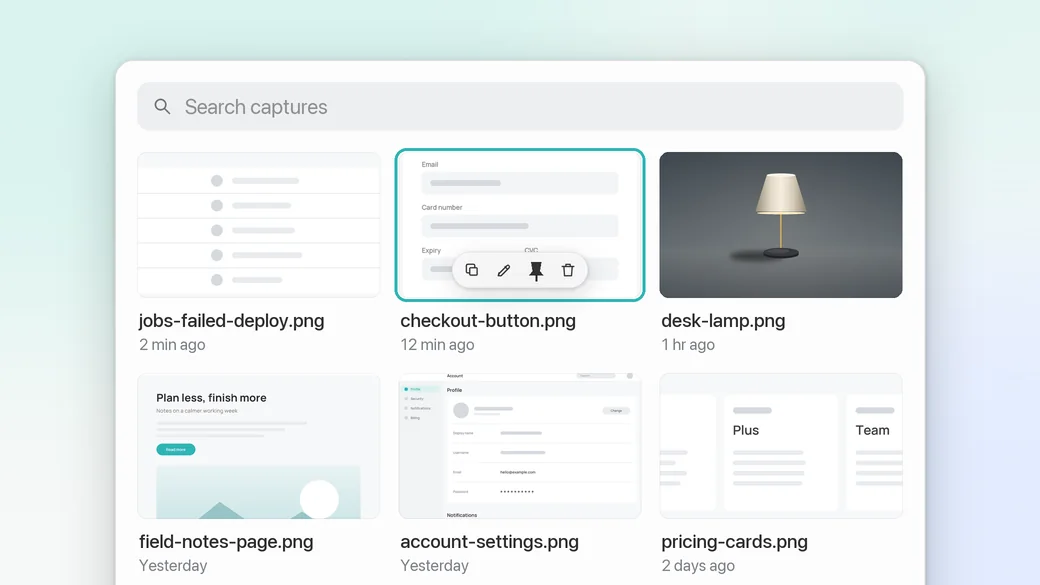
Opening History
- Press ⌃⌥H anywhere. Change the shortcut in Settings > Shortcuts.
- Or choose History... in Sightline's menu in the menu bar.
History opens in the middle of the screen with the pointer, above other windows, with the search field ready for typing. It closes when you press Esc, press ⌃⌥H again, or click somewhere else. Opening a capture in the editor, in another app or in Finder closes it too.
Browsing and filters
- The filter above the grid shows All, Screenshots, Recordings or Favorites. It works together with the search.
- Each card shows a preview, the file name and how long ago it was taken. Hover over a card to see the exact date and time.
- Recordings have a play badge on their preview.
- Make the previews larger or smaller with ⌘+ and ⌘- or a pinch on the trackpad: 2, 3 or 4 per row. Sightline remembers your choice.
- Click a card to select it, double-click it to open it in the editor.
Each time you open History, the search and the filter start fresh on All, with the newest capture selected.
Searching by text
Type into Search captures. History looks in each file name and in the text Sightline read in each screenshot:
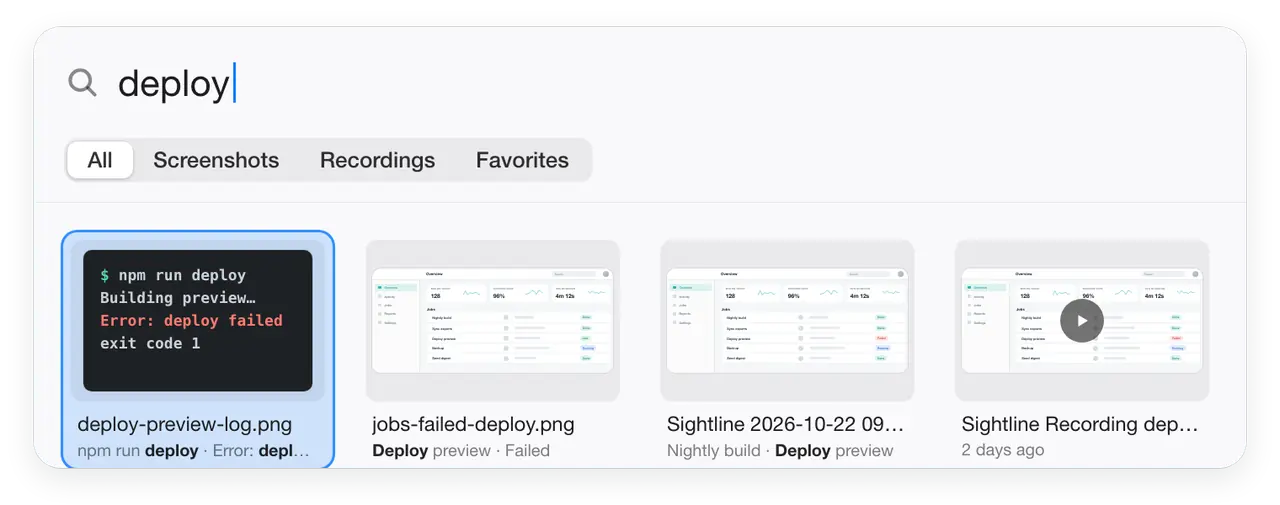
- Every word you type has to appear, in any order. More words narrow the results.
- Parts of words count:
invfindsinvoice. - Upper and lower case and accents don't matter:
cafefindsCafé. - When the text matched, the card shows the line it was found in, with your words in bold, instead of the date.
- Recordings are found by their file name only.
- The file name includes its extension, so
webpfinds your WebP files.
Searches that work well
| Search | Finds |
|---|---|
error 500 | The screenshot of that failed request, wherever the two words appear in it. |
invoice total | Invoices and receipts you captured, by the words printed on them. |
ssh | A terminal screenshot with an ssh command in it. |
Sightline Recording | Your recordings, by the start of their names. |
checkout button | With names from what is in a screenshot turned on, also matches names such as Sightline checkout-button-offset.png. |
2026-10-24 | Captures from one day, by the date in their names. |
How the text gets read
- A new screenshot is read right after it is saved.
- Screenshots that weren't read yet, for example from before you installed Sightline, are read in the background while History is open, newest first. A note such as Reading text in 12 screenshots… above the grid shows how many are left.
- Text recognition runs on your Mac and detects the language by itself.
- When you change a file, for example by saving an edit over it, Sightline reads it again.
Favorites
- Click the star in the corner of a card, choose Add to Favorites from its menu, or press ⌘D.
- Choose Favorites in the filter to see only them. Search works inside favorites too.
- Favorites follow a file when you rename it or move it between the save folder and the Agent folder.
- Favorites are stored by Sightline, not in the file. Another Mac or app doesn't see them.
Actions on a capture
Hover over a card for a Copy button, or right-click it for everything else:
| Menu item | What it does |
|---|---|
| Edit | Opens a screenshot in the editor and a recording in the recording editor. Double-click does the same. |
| Open in Preview / Open in QuickTime Player | Opens it in Apple's viewer for that kind of file. |
| Open With | Every app that opens the file, with your default app first. |
| Quick Look | A large preview that plays recordings. The arrow keys move to the next capture while it is open. |
| Copy | A screenshot goes on the clipboard as an image, a recording as a file that pastes into Finder, Mail and chat apps. |
| Copy File Path | The path of the file as text, for a terminal or a script. |
| Share... | The macOS share menu: AirDrop, Messages, Mail and more. |
| Show in Finder | Opens the folder with the file selected. |
| Add to Favorites | Stars it, see above. |
| Pin to Screen | Screenshots only: floats it above your windows. |
| Remove Background | Screenshots only, on macOS 27: shows a new thumbnail with only the subject. |
| Move to Trash | Moves the file to the Trash, where you can still put it back. |
Drag a card into any app to hand over the file. A screenshot you only copied is saved to your save folder first, so the other app gets a real file.
Keys in History
| Key | Action |
|---|---|
| ← → ↑ ↓ | Move the selection. While you type a search, left and right move the text cursor. |
| Return | Copy the selected capture |
| Space or ⌘Y | Quick Look, and close it again. While you type a search, use ⌘Y. |
| ⌘D | Add to Favorites or remove from them |
| ⌘⌫ | Move to Trash. After typing a search, click the card first. Then plain ⌫ works too. |
| ⌘+ ⌘- | Larger or smaller previews |
| Esc | Close Quick Look, then History |
All other shortcuts are in Keyboard shortcuts.
Editable captures
With Keep saved captures editable on in Settings > Editor, Edit brings back what you did before: the marks, crop and Style look of a screenshot, and the clips, speeds, sound, zooms, marks, pointer and keys of a recording. Change what you like and save again. More in Files and editable captures.
A screenshot you only copied opens as a new picture. Save writes it into your save folder.
What is kept, and Sightline Pro
- Without Sightline Pro, History shows the captures of the last 24 hours. Older ones are still on your disk, and the bottom of the window offers Get Sightline Pro....
- With Sightline Pro, History shows every capture in the folders, however old.
- The editor and Remove Background are part of Sightline Pro, the other actions work without it.
- Screenshots you only copied stay in History for 7 days, then Sightline deletes its copy. To keep one, drag it into a folder, or open it with Edit and save it.
- History doesn't delete anything by itself. What it shows follows your folder: Move to the Trash in Settings > Capture cleans up old captures Sightline saved, and a file you delete in Finder disappears from History too.
- History lists files directly in the save folder and the Agent folder, not in folders inside them.
Privacy of the text index
- The text of your screenshots is read on your Mac and kept in a private index in Sightline's own storage, up to 4000 characters per screenshot. Nothing is sent anywhere.
- Your files are never changed to make them searchable.
- Spotlight gets only the file names of your screenshots, never their text. Search by text in History.
- When a file is gone from the folders, its text is dropped from the index.
For AI agents
Agents search the same index with the search_captures tool, so you can ask for a capture the way you remember it:
> Find the screenshot with error 500 I starred last week and tell me which endpoint failed.
{
  "tool": "search_captures",
  "arguments": {
    "query": "error 500", "kind": "screenshot", "favorites_only": true,
    "limit": 5
  }
}It returns each match's path, date, whether it is a favorite, and the line that matched. Agents see the save folder and the Agent folder, not the screenshots you only copied. With Hide flagged credentials from agents on, text near anything that looks like a password or key never counts as a match. Details are in MCP server.
Tips
- Search for a word from an error message, a person's name or a price instead of scrolling. It is usually faster than remembering when you took the screenshot.
- Star the screenshots you send again and again, such as a setup guide or a bank detail, and find them under Favorites.
- Press ⌃⌥H, Return to copy your newest capture again without leaving the app you are in.
- Clean-up also moves favorites to the Trash when they are old enough. To keep a capture for good, set Move to the Trash to Never, or rename the file so it no longer starts with
Sightline; clean-up only touches files with Sightline's own names.