AI agents and CLI
Can Claude Code or Codex take screenshots on my Mac?
Yes. Sightline has a built in MCP server, so Claude Code, Claude Desktop, Codex CLI and other MCP clients can capture the screen, a window or an area, read the text on it and mark it up. Turn on agent access and click Connect in Settings > AI Agents.
Does Sightline have a command line tool (CLI)?
Yes. Sightline comes with sightline-cli inside the app. List what it can do with /Applications/Sightline.app/Contents/MacOS/sightline-cli tools, then call a tool by name with its options as JSON, for example sightline-cli capture_window --json '{"app": "Safari"}'. It prints the result as JSON. Sightline must be running with agent access on in Settings > AI Agents, and it asks you to allow the command line tool the first time. sightline-cli mcp runs the same tools as an MCP server for AI agents.
Can my AI agent check its own UI work?
Yes. Your agent builds something, captures the window and looks at the result, so it notices when a button sits off. It can also compare the screen with a design image and get a list of what still differs.
Which AI agents work with Sightline?
Claude Code, Claude Desktop and Codex CLI connect with one click. Any other MCP client works by running /Applications/Sightline.app/Contents/MacOS/sightline-cli mcp as a stdio server. Here is how to set up the screenshot MCP server in Cursor and other clients.
Can my AI agent edit the screenshot I have open?
Yes. Your agent can see which editor windows you have open and work in the one you are looking at. Its marks, cuts, zooms and looks appear live and animated with the agent's name, nothing is saved until you save, and one Undo takes a whole request back.
What can an AI agent see and do on my Mac?
Only what you allow. Agent access is off until you turn it on, each new agent asks first, and you can remove an agent at any time in Settings. Agents can't change settings and only read and write inside your screenshot folder.
Screenshots and the editor
Does Sightline replace the macOS screenshot tool?
It works the same way, with ⌘⇧3, ⌘⇧4 and ⌘⇧5 and the thumbnail in the corner, and adds an editor, scrolling capture, text recognition, Remove Background, pins, a history, and screen recording with your voice, a video editor and blur that follows.
How do I take a scrolling screenshot on a Mac?
Choose Scrolling Capture in Sightline's menu, pick the area or window, and scroll yourself or let Sightline scroll for you. It stitches the frames into one tall image, for long web pages, chats or Terminal output.
Why does ⌘⇧6 ask Siri instead of starting scrolling capture?
On macOS 27 with Siri AI turned on, ⌘⇧6 is also the macOS shortcut for Ask Siri about selected area, and macOS gets it first. Turn it off in System Settings > Keyboard > Keyboard Shortcuts > Screenshots, or give scrolling capture another shortcut in Sightline's Settings > Shortcuts.
How do I screenshot an open menu on a Mac?
Press F while you select an area and Sightline freezes the screen, so the open menu, a tooltip or a hover state stays exactly as it was while you drag. Press F again to unfreeze. To freeze every area selection from the start, turn on Freeze the screen while selecting an area in Settings > Capture.
Can I search my screenshots by the text in them?
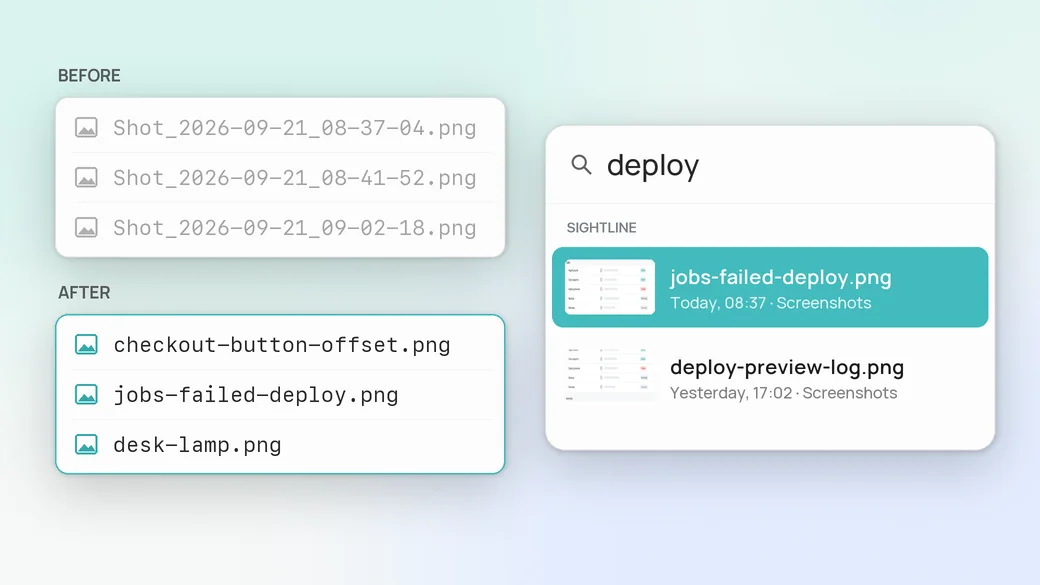
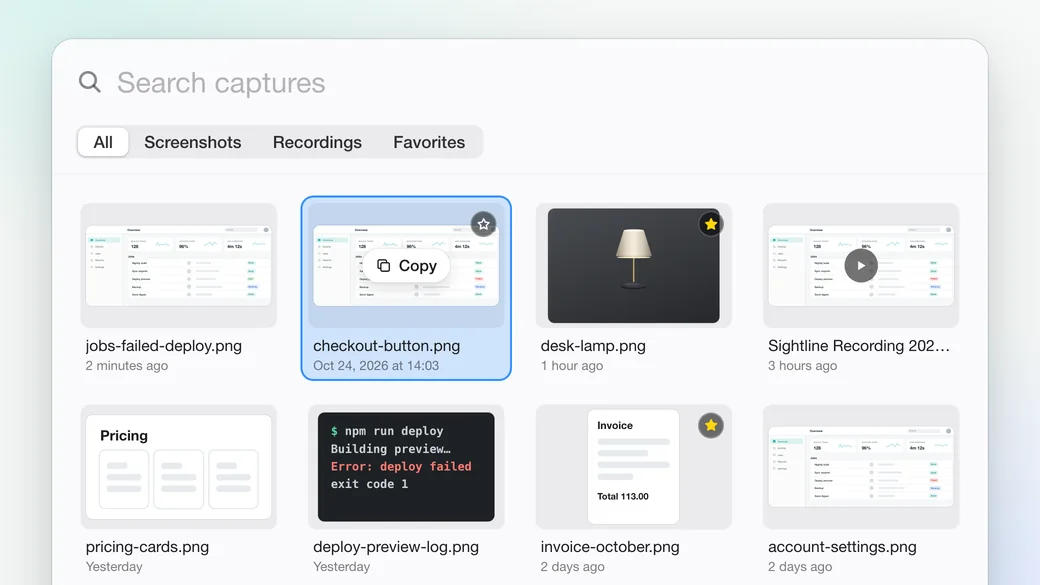
Yes. Press ⌃⌥H for History and type a word you saw in a screenshot. Sightline reads the text on your Mac into a private index, your files stay untouched, and each match shows the line it found. Star favorites with ⌘D, filter by screenshots, recordings or favorites, and press Space to look at one with Quick Look. Your AI agent can search the same way.
How do I blur something in a screenshot?
Open the screenshot in the editor, press B for the blur tool and drag over what should stay private, or switch it to pixelate. Sightline also spots passwords and API keys and offers to blur them before you share. In recordings a blur follows what it covers.
What can I do in the editor?
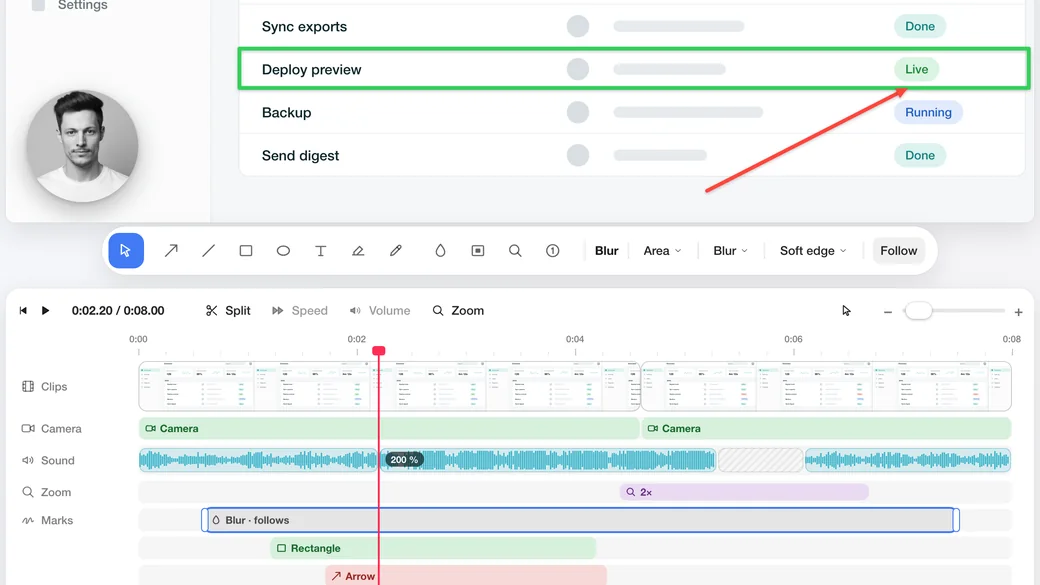
Draw arrows, shapes, text, highlights, a spotlight, a magnifier, blur and step numbers, each on a single key. Crop, rotate, flip and resize, remove the background, paste and arrange several captures, and pin a capture over your other windows. Recordings get a timeline with clips, a sound row, zooms on clicks, click highlights, the keys you pressed and a row for every mark, and a right click splits any of them at the playhead. Every mark stays editable, also after you save and open the file again, including the ones your AI agent drew.
Why does a file open without the editing tools?
A screenshot or recording you open from Finder or with Open File that Sightline hasn't edited opens in view mode: just the picture or the video, with Share, Copy and Edit, and a recording gets a play bar that fades while it plays. Click Edit, press ⌘E or choose View > Edit Mode for the tools, and press ⌘E again to just look. Opening a file that is already open brings its window to the front.
Can I open several screenshots in one window?
Yes. Select a few images in Finder and open them with Sightline, choose them together in Open File, or ⌘-click or ⇧-click several captures in History and open them. They share one editor window with a column of thumbnails on the left: click one, or use the arrow keys or ⌥⌘ and an arrow, to switch. Each picture keeps its own marks and undo, ⌘W closes the one you see, and Save All, Copy All and Export All are in the chevron next to Save. Export All asks for the format and quality and can be stopped, Apply to All Pictures in the Style panel gives every picture the same look, and Image > Adjust Size of All Pictures… makes them smaller by a percent or to a width. Drag a thumbnail from the column into another app, or drop pictures on the column or choose File > Add Pictures… to add more. A new capture still opens its own window.
How do I compare my app with a design?
Pin the design, a mockup or an earlier screenshot over the running app and choose Show Differences in the pin's bar or right-click menu. Sightline captures what is below the pin, lines it up and numbers every spot that differs, with a list that says whether it moved, is missing or only looks different. Turn on Tracing to click through to the app while the marks follow. Your AI agent can run the same comparison over MCP. Here is how to compare your app with a design, step by step.
Recordings
Can Sightline record my screen?
Yes. Record an area, a window or the whole display to MP4 with system audio and, if you like, your microphone, after an optional countdown. The recording opens in an editor where you split, reorder and speed up clips, mute or raise parts of the sound, and draw arrows, text and blurs that each show for their own stretch of time. A blur stays on an email address or a face while the page scrolls. On macOS 27, Replay keeps the last 15 seconds so you can save what just happened.
Can I record screencasts with my voice?
Yes. Turn on Record microphone in Settings › Recording and pick a microphone. Your voice is mixed with the system sound into the recording, and the recording bar mutes the microphone or pauses the recording while you talk. Afterwards you cut the screencast into shape in the editor and share it.
Can I add a webcam overlay to a screen recording?
Yes. Choose a camera in Settings › Recording and allow Camera access. While you record, you appear in a bubble you can drag anywhere, resize from its edge and switch between a circle and a rounded rectangle; on a screen you don't record it is just a mirror for you. The camera is recorded on its own, so the file saved after Stop is the plain screen video. In the editor the camera gets its own lane: split it with ⌘B, hide parts, and give each part its own place, size and shape, with a smooth glide between them. Crop and zoom never move it, and it is drawn in when you save or export from the editor, as MP4, MOV or GIF. The camera is off by default, stays on your Mac, and agents never turn it on.
How do I record my screen with sound on a Mac?
Choose Record Area, Record Window or Record Full Screen from Sightline in the menu bar. Turn on Record system audio in Settings > Recording for the sound of your Mac, and Record microphone for your voice; you can mute the microphone from the recording bar. Screen recording needs macOS 15 or later.
Can I edit screen recordings on a Mac?
Yes. Open a recording from its thumbnail or from History and Sightline's video editor opens with a timeline: split, trim and reorder clips, play parts from 0.5x to 15x, mute or raise the sound, zoom in by hand or on every click, crop to a shape like 16:9, 1:1 or 9:16, highlight clicks, show the keys you pressed, place, hide and shape your camera, and add arrows, text and blurs that follow what they cover. Right-click a clip, the sound, a zoom, a mark or the keys to split it at the playhead. Copy, Save or Share the result as MP4, or export it at 1080p or 720p as MP4 or MOV, or as a GIF.
Can I export a screen recording as a GIF?
Yes. Open the recording in Sightline's video editor and choose File > Export, then GIF. Pick the width and the frame rate; by default the GIF is 640 pixels wide at 10 frames a second, small enough for most chats. The GIF loops, has no sound and keeps your cuts, speeds, zooms, marks and blurs, and Sightline estimates its size before you export. Your AI agent can export a GIF too.
Can I show keystrokes in a screen recording?
Yes. Turn on Show keystrokes in Settings > Recording, with Shortcuts only or All keys, and allow Input Monitoring. In the recording editor the Keys row shows where keys appear: split it and choose Words, Letter by Letter, Shortcuts Only or Hidden for each part, and set the position, size and look with the Keys button. Keys typed into password fields never show, the keys stay on your Mac, and agent recordings and Replay never note them.
How do I show clicks in a screen recording on a Mac?
Sightline notes where the pointer moves and clicks while it records, with no extra permission. In the video editor, turn on Click highlights in the Pointer section and pick a ripple or a ring in the color you like. Zoom on Clicks adds a smooth zoom for every click, and a zoom can follow the pointer. The pointer track is only used for editing and stays on your Mac.
Can I make the pointer larger, smoother or hide it after recording?
Yes. Before you record, set Pointer to Editable in the editor in Settings > Recording. Sightline then leaves the system pointer out of the video and the editor draws it at 1x, 1.5x or 2x, and can hide it while it isn't moving. Smooth movement, on by default in the Pointer options, lets the pointer glide instead of jitter and still land exactly on every click. With In the video, macOS records the pointer into the picture as it is, and only click highlights can be added.
Privacy, Apple Intelligence and requirements
Do my screenshots leave my Mac?
No. Captures stay on your Mac, and text recognition, naming and the password check run on device with Apple Intelligence and Apple's Vision. There is no account, no analytics and no server of its own.
Does Sightline use Apple Intelligence?
Yes, on Macs that support it. Apple Intelligence names your screenshots after what is in them and finds passwords, keys and tokens before you share, all on device with macOS 26 or later. Remove Background and the subject blur use Apple's on-device Vision model on macOS 27.
Why are smart names or Style suggestions not working?
They need Apple Intelligence, and macOS doesn't tell apps why it is off. In System Settings, check that Apple Intelligence is turned on under Apple Intelligence & Siri (Siri on newer macOS), and that the Siri language exactly matches the language of your Mac, for example both English (United States). If the two differ, macOS hides Apple Intelligence completely. After turning it on or after a macOS update, keep the Mac plugged in and online while the model downloads, which can take a while. Apple Intelligence also needs a Mac with Apple silicon, macOS 26 or later and a supported region.
Which macOS versions does it need?
macOS 14 or later. Screen recording needs macOS 15, the Apple Intelligence features macOS 26, and Remove Background and Replay macOS 27.
 Sightline